Category: Tech Tips
-
Creating a new project in PyCharm
File –> New Project…. Assign project location. Select “Generate new” and “Virtualenv” Click. “Create” That’s it. Read more
-
Trouble shooting xlwings with PyCharm on Mac
If you have errors with xlwings such as “xlwings.XlwingsError: Make sure to have “appscript” and “psutil”, dependencies of xlwings, installed.”, try steps below. 1. Create your project with “uv” environment. Choose “Custom environment” for Interpreter Type, “Generate new” for Environment and “uv” for Type. 2. Stop the Python Console by clicking the red square button. Read more
-
Install Python Packages in PyCharm
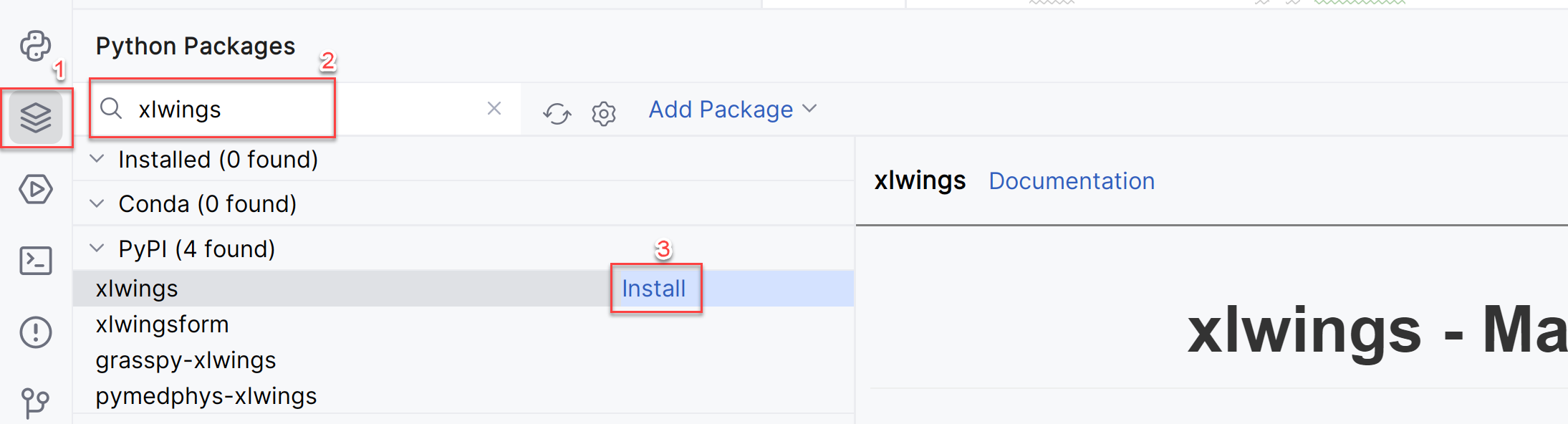
To install Python Packages in PyCharm. This is an example of installing “xlwings” package on Python. 1) Press Python Packages button, 2) search the package by name and 3) install. Or, 1) Press Terminal button and 2) type “pip install xlwings” and run. . Read more
-
Anaconda Install
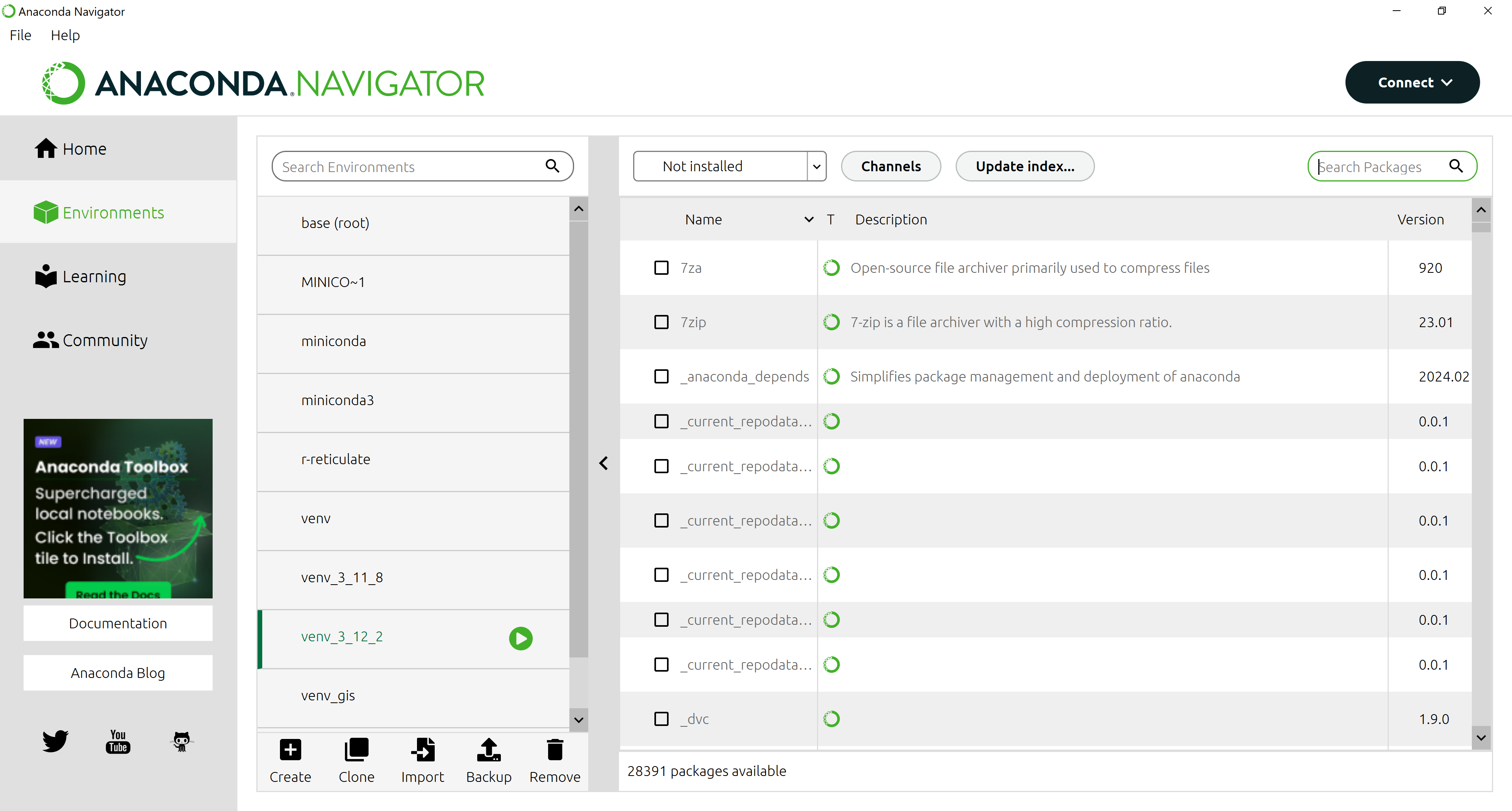
What is Anaconda? It is a package manage tool for Python and others. You can download it for free from Free Download | Anaconda. Why do we need this? Python and PyCharm provide library install functionalities using “pip” command but sometimes this base function does not work well with some libraries. Anaconda works relatively better. Read more
-
Setup Python with PyCharm
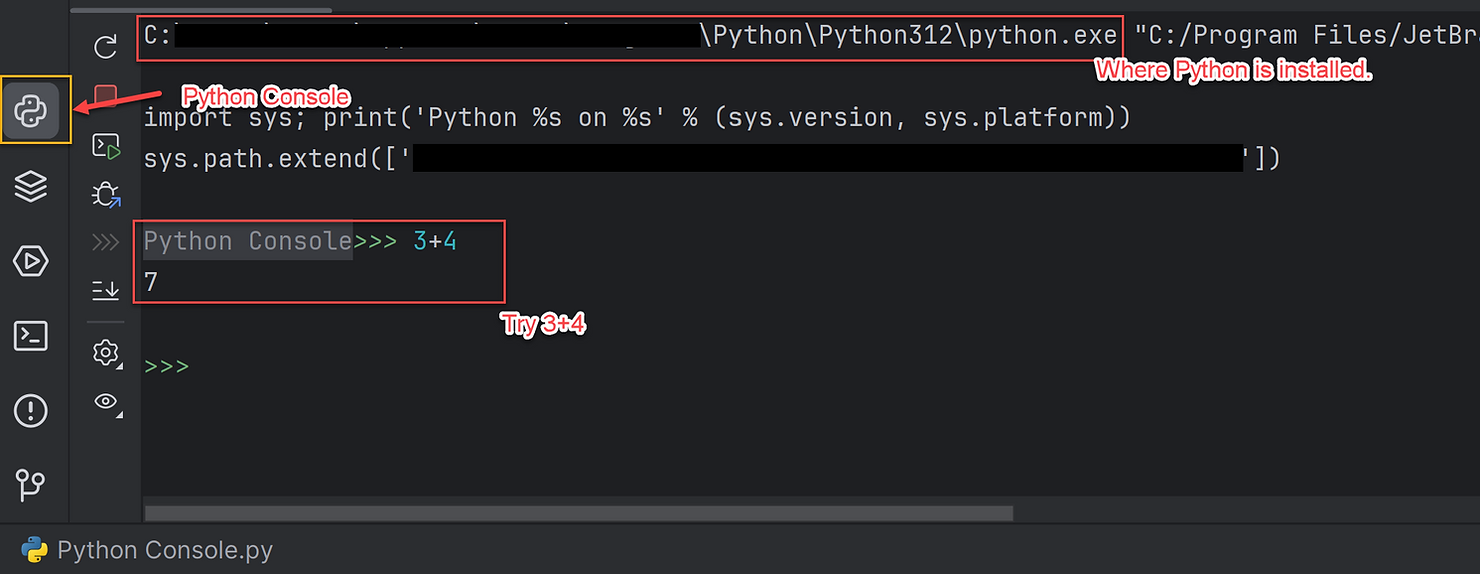
Setup First, we need to download and install Python. You can download it from Python wesite (https://www.python.org/downloads/). Choose a proper version for your system. This is the core engine of Python. Second, we need a so called editor. There are variety of editors, but here PyCharm will be used. Free version of PyCharm (PyCharm Community Read more
-
How to Make Excel Macro Run on Your Computer
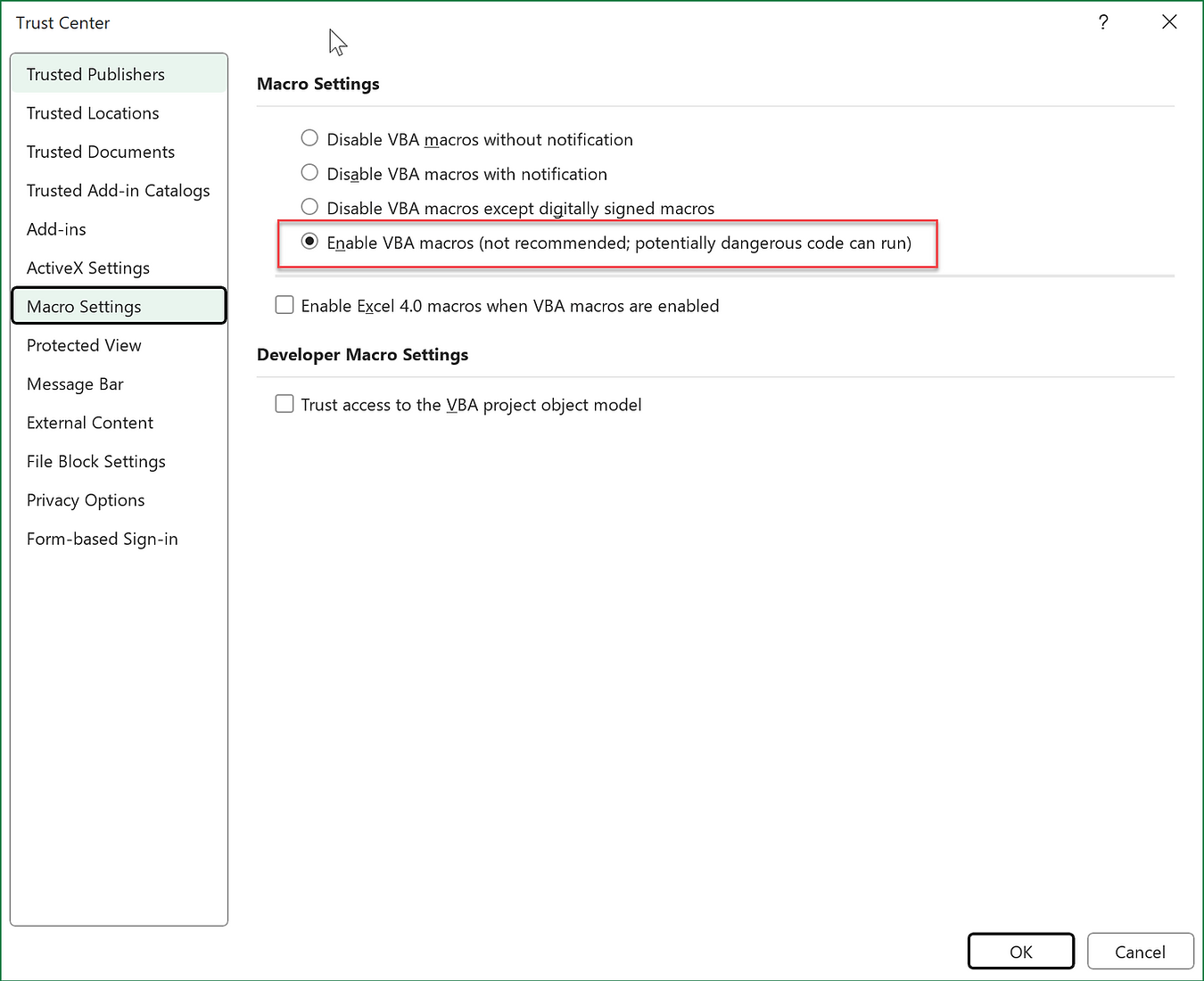
Microsoft has changed policy on Excel macros and now macros will not run even if you enable the macro. You need one more extra step to go and this is how. 1. Enable macros in your Excel file. Go to File –> Options –> Trust Center. Click Trust Center Settings –> Macro Settings. Check Enable Read more
-
Excel Web Add-in #4: Publish – 1
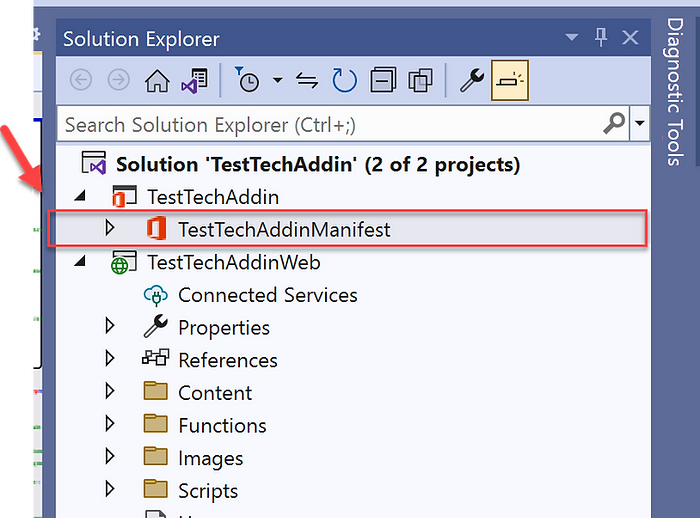
Now, you have your first program and want to release (publish) to the public. I will explain this in three articles. The process requires time and efforts. Let’s look at the project folder first. It should look like this. TestTechAddinWeb folder holds all your web program and TestTechAddin folder mainly holds the manifest file of Read more
-
Excel Web Add-in #3: First Program
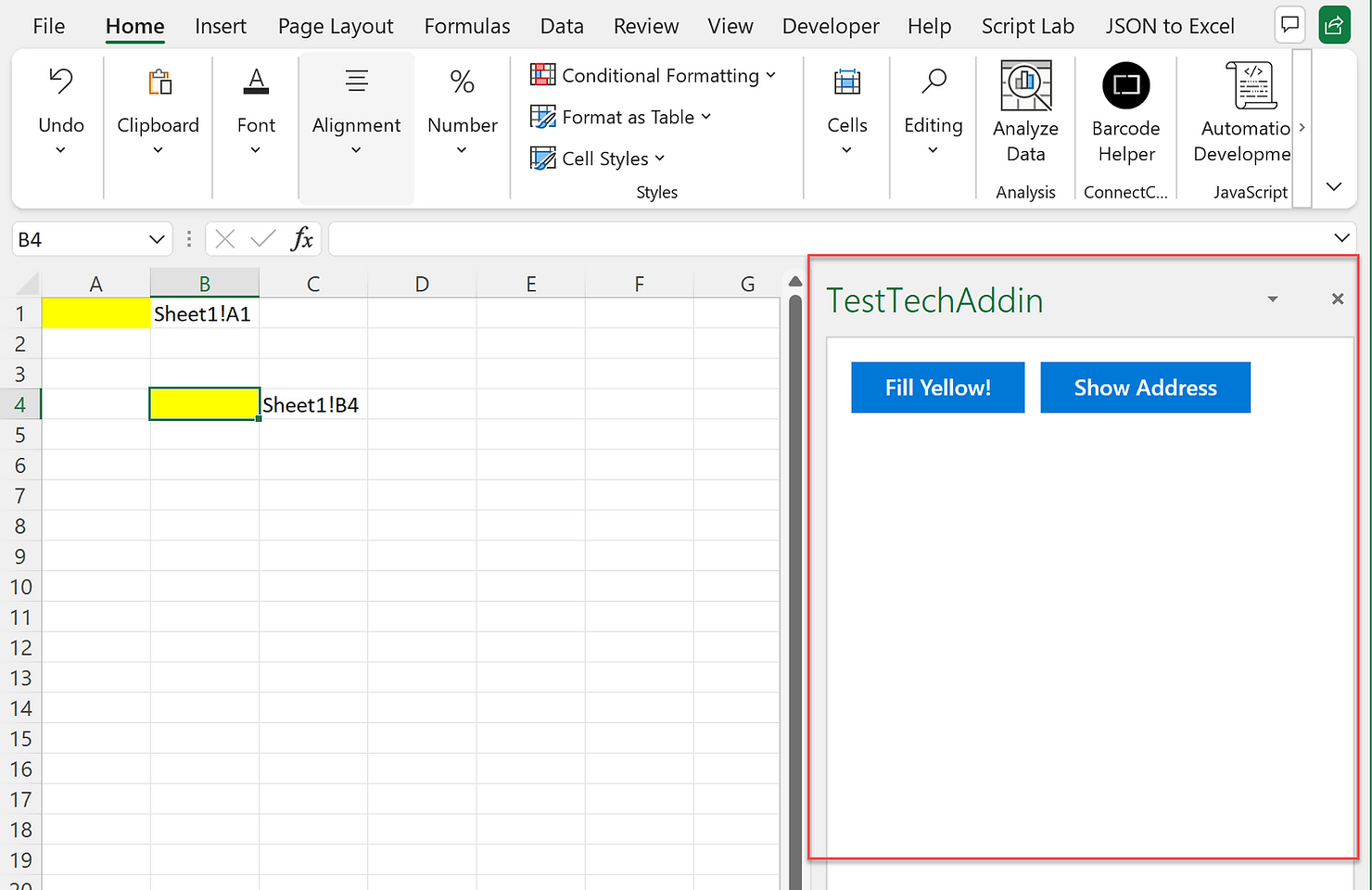
Let’s tweak the skeleton program VS generated. First change the “Home.html” to this (copy & paste). Now change the “Home.js” to this (copy & paste): Click the start button to debug. The add-in now has two buttons. “Fill Yellow!” button will fill the selected cell yellow and “Show Address” button will show the address of Read more
-
Excel Web Add-in #2: Quick Run
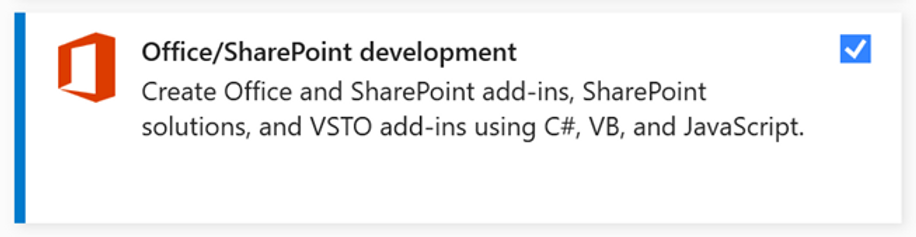
Before we get into the details, let’s see how it works. I like to see things in action first, then start looking under the hood. First, let’s install the most recent version of Visual Studio (VS) Community (Visual Studio 2022 Community Edition – Download Latest Free Version (microsoft.com). While you are installing, make sure to Read more
-
Excel Web Add-in #1: Intro
Hello VBA users (actually, it’s okay if you have any programming language experience). In this series of articles, I will demonstrate the full development cycle of Excel Web Add-in as an alternative of VBA, from the project creation to the public publish of add-ins. If you are a long-time VBA user, I guess you are Read more